A laptop stolen from the car, or a cup of coffee over the keyboard. Sooner or later it happens in every business, and then you want to know two things: is the business data on that laptop safe, and how quickly can the employee get back to work?
Whether the answer to both is reassuring depends on what you set up in advance. On the day itself there’s little you can catch up on. So first what to prepare, then what to do when it goes wrong.
What to set up in advance
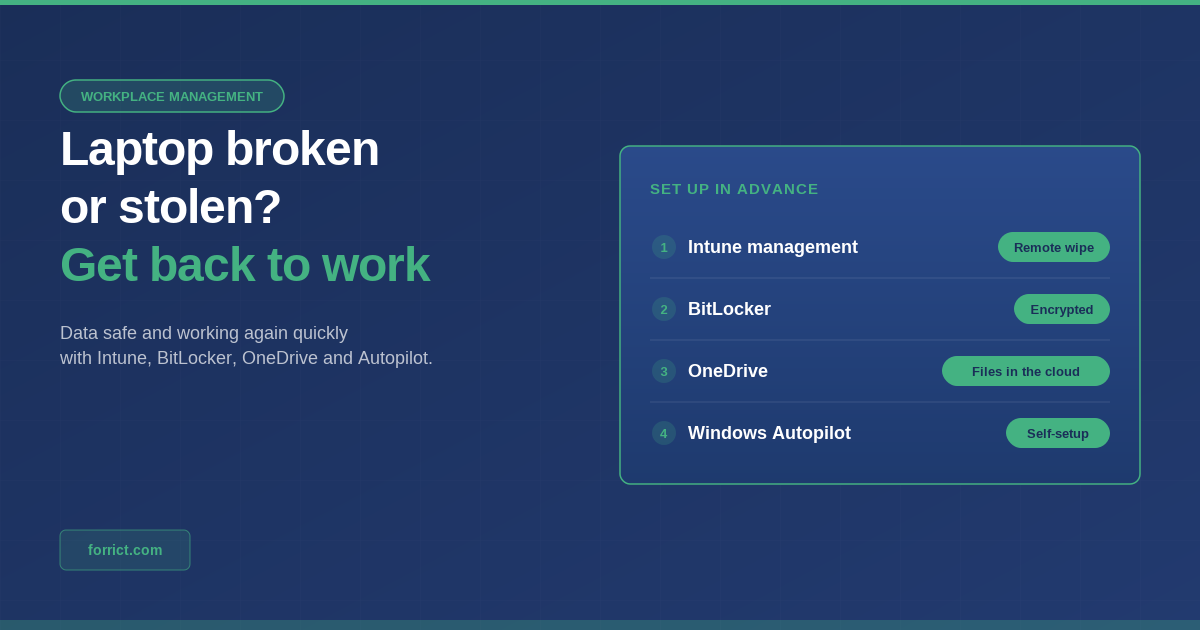
With Microsoft 365 and Intune it comes down to four measures:
| Measure | What it does | Why it matters when a laptop is lost |
|---|---|---|
| Intune management | The laptop is enrolled in Intune, Microsoft’s management platform | You can only wipe an enrolled device remotely |
| BitLocker encryption | The disk is encrypted. Intune can enforce this without user interaction, and the recovery key is stored in Microsoft Entra ID (Microsoft) | A thief who removes the disk can’t read the files |
| OneDrive for known folders | Desktop, Documents and Pictures are moved to OneDrive. According to Microsoft this backs up the data in the cloud and makes the files available from any device (Microsoft) | The files aren’t only on the laptop that’s gone |
| Windows Autopilot | New laptops are registered to your organisation by the manufacturer, reseller or distributor (Microsoft) | A replacement laptop sets itself up, without IT having to install it first |
Without these four, a stolen laptop is a bigger problem: you can’t be sure nobody can open the files, and the new laptop has to be set up by hand.
Stolen or lost: the step-by-step plan
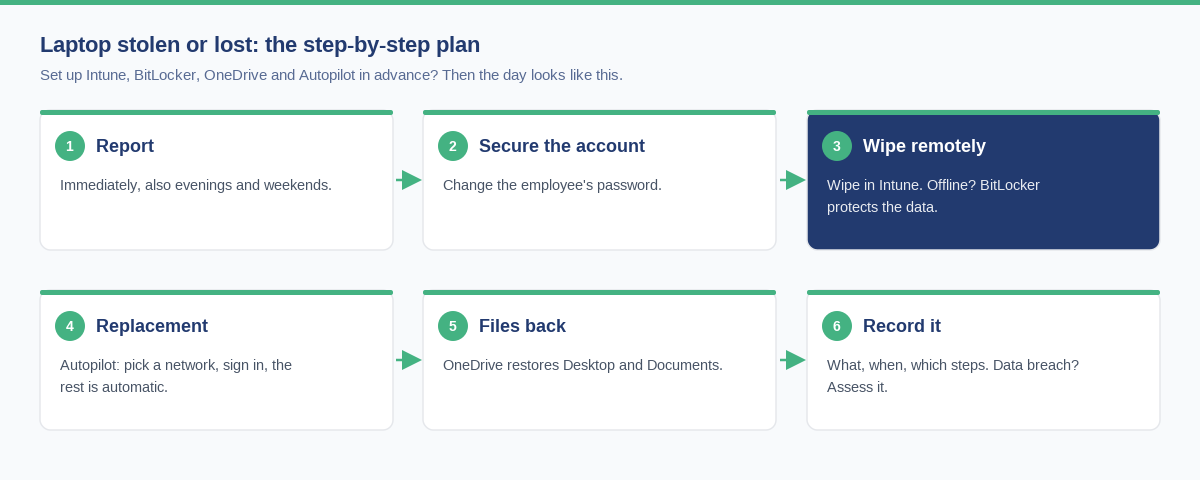
- Report it straight away. Agree that employees report a lost or stolen laptop immediately, also in the evening or at the weekend. The sooner, the better.
- Secure the account. Change the employee’s password, so nobody can use saved credentials on the laptop to reach email or files.
- Wipe the laptop remotely. In Intune, choose Wipe. According to Microsoft this restores the device to factory settings and removes all personal and organisational data, apps and configurations (Microsoft). Note: a device must be connected to the internet to receive the command (Microsoft). If the laptop never comes online again, encryption is your protection.
- Hand out a replacement. If it’s registered with Autopilot, Microsoft says the only thing the user has to do is connect to a network and sign in with their work account. Everything after that is automatic: the device joins Microsoft Entra ID, enrols in Intune, and settings and apps are installed (Microsoft).
- The files are back. After sign-in, OneDrive syncs the files from Desktop, Documents and Pictures.
- Record it. Write down what’s gone, when, and which steps you took. Was there personal data on the laptop? Then check whether you need to report it as a data breach to your data protection authority (in the Netherlands, the Autoriteit Persoonsgegevens). The fact that the device was encrypted and wiped remotely is important information for that assessment.
Broken instead of stolen
Is the laptop broken rather than gone, or do you want to hand it to a colleague? Then there’s no need for a fresh installation. With Windows Autopilot Reset you bring an existing device back to a business-ready state. Microsoft explicitly mentions this as useful in break/fix scenarios (Microsoft).
Wipe or only remove company data?
Intune has two actions that look alike. Wipe resets the device to factory settings and removes all data, apps and settings (Microsoft). You use it for a company laptop that’s stolen or lost.
Retire removes only the company data, apps and settings and keeps personal data (Microsoft). That’s the right choice for an employee’s own device when they leave.
What this means for your licences
According to Microsoft, automatic enrolment of devices in Intune via Autopilot requires a Microsoft Entra ID P1 or P2 subscription (Microsoft). Intune Plan 1 and Entra ID P1 are both included in Microsoft 365 Business Premium (Microsoft). With Basic and Standard you need to add them separately.
Our view
This section is Forrict’s opinion.
A stolen laptop costs money, but we worry more about the data and the hours someone can’t work. You sort out both before it happens. In our view these four measures belong in every small business as standard. Then test it once: hand out a laptop through Autopilot and time it. Then you know what to expect when it actually happens.
With workplace management we set up Intune, encryption, OneDrive and Autopilot for you, and we take the steps above with you when the time comes.
Get in touch about workplace management →
Sources
- Microsoft Learn: Wipe devices with Microsoft Intune
- Microsoft Learn: Device actions in Microsoft Intune
- Microsoft Learn: Retire
- Microsoft Learn: Encrypt Windows devices with BitLocker using Intune
- Microsoft Learn: Redirect and move Windows known folders to OneDrive
- Microsoft Learn: Overview of Windows Autopilot
- Microsoft Learn: Windows Autopilot registration overview
- Microsoft: Microsoft 365 User Subscription Suites for Small and Medium-sized Businesses (November 2025)
Forrict
AWS expert and consultant at Forrict, specializing in cloud architecture and AWS best practices for Dutch businesses.